


How to Effectively Use Internet Time
The Internet is a tremendously useful tool, but can easily become a black hole for productivity. In today’s world, many people need to use the Internet daily for work, school, or as a means of connecting with friends and family, but we also frequently find ourselves using it distractedly, without intention or purpose. While for most people it’s not realistic to try to avoid the Internet altogether, it’s entirely possible to manage our habits in a way that allows us to use the time we do spend online more effectively.
Becoming Aware of Your Existing Internet Habits

1. Create an Internet activity log. If you find yourself wondering “Where does all the time go?”, this is a great way to find out. For one week, write down everything you do while using the Internet. What websites you visit, how much time you spend on each, how often you refresh or update pages, each time you click on an embedded link, etc. Often our worst Internet time-wasting habits are things we do mindlessly
- Make sure you include the time you spend using the network on your smart phone or other hand-held device. For people with on-the-go lifestyles, this is often where we clock in most of our Internet hours!

2. Identify your problem areas. Checking our email or refreshing our Twitter feed every five minutes is an impulse that keeps us from being able to focus on longer tasks. If the paper we’re researching begins to feel frustrating or boring, it seems harmless to take a 10-second break in order to see if something more exciting is going on in another window. The problem, though, is that all these little breaks, plus the time it takes us to refocus our attention as it shifts back and forth, really add up. Particular habits will vary from person to person, but some examples might include:
- Do you check your email fifty times in a day?
- Perhaps you spend an appalling amount of time on celebrity gossip blogs or websites?
- Maybe you keep yourself logged in to Google Chat or Facebook Messenger when you’re doing other things, and find you are frequently interrupted by friends looking to chat?
- Or maybe you find that after thirty minutes of concentrating hard on something, you get a sudden intense “craving” to see if anyone new has “liked” your new Facebook profile picture, and then just get sucked into your newsfeed for an hour or more?

3. Get acquainted with your dopamine. It might seem like your friend is being hyperbolic when she says something like “I’m totally addicted to my iPhone!”, but there’s actual science behind this. Technology dependence actually changes the way our brains work, very similar to the changes a brain undergoes in the instance of drug, alcohol, or gambling addictions.
- The culprit is a chemical in our brain called dopamine, which
controls our moods, motivation, and sense of reward.
- Every time you hear the bloop of your Facebook messenger, a little surge of dopamine is released in your brain, which is what triggers the urge to check it.
- Dopamine addiction is an endless cycle. The brief “high” is caused by the anticipation, the uncertainty of the unknown. Who could the message be from? Usually the urge to find out is greater than the satisfaction we feel once we’ve actually seen the message, which leaves us feeling a little low, and eager for another dopamine boost.
While technology dependence is becoming increasingly common in today’s world, we don’t have to be slaves to our dopamine receptors. With a little mindfulness and dedication, we can train ourselves to resist this eternally unsatisfying, unproductive loop.

4. Resolve to make necessary changes. For many people, unlearning pre-existing habits can be difficult, especially at first.
- Recognize that most of these changes are going to require
restricting yourself things that bring you comfort or pleasure.
- It’s not uncommon to even experience mild withdrawal symptoms when we begin to alter our Internet behaviors in this way, due to the decrease in dopamine production.
Keep in mind that this transitional discomfort is temporary, and that you are on your way to being a happier, healthier, and more productive person.
Part 2
Getting Prepared

1. Organize your workstation. It’s amazing how much space we free up in our brains just by having a workspace free of visual distractions. If there’s a pile of papers begging to be organized, or dirty dishes scattered around, it’s going to be more difficult to focus on the task at hand. Try to keep your desk (or other work area) free of everything but current projects and whatever items you use every day.

3. Organize your computer desktop. Make sure to keep your files organized into folders, rather that splattered all over your screen, and bookmark websites you use frequently. This will save you a lot of time when it comes to searching for things you need, and will keep you from being distracted by something that catches your eye in the searching process.

4. Make a list of what you need to do on the Internet before you open your browser. Is there a song you’ve been meaning to listen to? Do you need to read some restaurant reviews to figure out where to bring your mom for her birthday? Do you need to need to research costs for a home-improvement project?
- This is something you should be doing throughout the day, every
day, as things pop into your head.
- Keeping an Internet to-do list will give you a clearer sense of purpose, and remind you of your long-term time-management goals.

5. Determine what time of day you are most productive. Some people are most alert first thing in the morning, others don’t reach their peak until the middle of the night. If you have some flexibility in your daily schedule, try to plan your Internet time for when you are most likely to be awake, energized, and thinking clearly.

6. Plan to do more with less. Internet efficacy is going to mean something different to everyone, depending on career, interests, and other lifestyle factors. Some people need to be logged on all day long for their jobs, while others primarily use the Internet in the evenings as a way to unwind.
- While the specific time-management goals will vary from person to person, everyone should be aiming to simultaneously accomplish more while also spending less time online.
Part 3
Implementing Changes

1. Minimize your screen time. In other words, simply aiming to spend less time on the Internet in general is a good start. While it may seem counter-intuitive, we tend to be more productive when we have a shorter window in which to get something done.

2. Avoid multitasking. While it might seem like it’s more productive to do two or three things at once, it can actually slow us down in the long run, as we’re not able to give our full attention to any one thing. It might be tempting to switch back and forth between Internet tasks in order to keep things interesting, but try to stick to your Internet to do list, finishing each thing before you move on to the next.

3. Do what you can while offline. If you need to read something longer than a page, such as an article or proposal, see if you can download it, and read it with your browser closed. If you need to write a long email reply, try composing it in Microsoft Word.
- This will further minimize distractions, by preventing you from going down hyperlink rabbit holes, or protecting you from the bloops or dings of email notifications as they inevitably trickle in.

4. Restrict the time you spend on social networking websites. This is something you’re going to want to be tough with yourself about, as these websites are not only black holes for productivity, but also very addictive.
- If you remember, dopamine thrives on anticipation and the
unknown, and social networking sites are never static, always changing as
people update their statuses, add photos, “like” things. And nothing is
actually ever as interesting or fulfilling as we think it might be.
- If you must visit sites such as Facebook, Twitter, Pinterest, etc., do so with great awareness, and give yourself a strict time limit. Try using a kitchen timer to keep yourself on track.
- It’s important to actually sign off of and close these websites, rather than just opening a new tab or window on top of them. The easier something is to access, the more tempting it is.

5. Reckon with your email. Try checking your email just three times daily: once in the morning, once around lunch time, and once in the evening. Your email, while necessary, can be as bad for time-management as social networking sites if you are constantly refreshing or checking it incessantly.
- Make sure to trash, archive, or respond to every new email in each sitting. This will not only save you time in the long run, but will give you a sense of accomplishment as you stay on top of your correspondences.

6. Look outside of yourself for help with self-control. If you are having trouble abiding by the restrictions you’ve set for yourself, you’re not the only one! A majority of people find it challenging to efficiently managing their Internet time. So many people, in fact, there are a bunch of free or cheap downloadable applications out there to help you with just this. Here are just a few examples:
- RescueTime keeps
you from being able to access certain websites for a certain amount of time.
Let’s say you’re working on a paper about different types of cloud formations;
you’ll be able to access Google, and the National Weather Service website that
it directs you to, but you can block Gmail, Facebook, Twitter, YouTube, Buzzfeed,
or any other website that might tempt you to lose your focus. It also keeps
track of your daily Internet habits for you, letting you know how much time you
spend on email, on Skype, on wikiHow, etc. There are many other
Internet-blocking applications available, all with slightly different
parameters or additional features. Find one that works well for you!
- The Email Game turns plowing through your email into a timed game. You earn points the faster you can clear your inbox!
- Pocket allows you to save websites you come across for viewing at a more convenient time. Maybe you’re reading an article that includes an enticing hyperlinked article. You can save this link, or anything else, to look at later.
focus@will is an application that uses brain science and soothing music to help increase your attention span and productivity, which will decrease the impulse to seek easy distractions.

7
Consider getting rid of your Internet at home. While this might seem like an extreme measure for some, it will absolutely force you to plan out the majority of your Internet usage, inherently making more productive use of your Internet time. If you’re struggling a lot with self-control, this might be something to look into.
- Having to use the Internet with other people around also has the
potential to make you more aware of your bad habits. You’ll be less likely to
unconsciously browse your way over to your recent ex-boyfriend’s Facebook page
if you’re sitting in the window of a café where anyone who walks past can see
your laptop screen, for instance.
- If you want to experiment with this idea but aren’t ready to make the full-blown commitment of canceling your internet service, try stashing your router at a friend’s house for a few days.
- Or if you live with a roommate or spouse who’s not amenable to the idea of going Internet-free, have them change Wi-Fi password.
https://www.wikihow.com/Effectively-Use-Internet-Time
10 Top Tips for Using the Internet
The internet is a big place, and navigating it can be daunting. Try out our top tips for not getting lost in cyber-space.

1. Use internet search engines
Internet search engines are amongst the most useful tools at your disposal for finding information online, so use them. Rather than guessing the full addresses of websites, simply type the information into a search engine such as Google or Bing. Not only will this lead you to the information that you require, it will also broaden your search to include other relevant sites. Clear your cookies and browsing history so you can stay private online. Clearing your web browsers cache will also fix temporary internet errors.
Be wary of what you search for on the internet, websites like Google can use your search keywords you use to collect information about you.

2. Bookmark pages
Found an amazing site the other day? Can’t remember the URL now? Always bookmark websites that you find interesting. Bookmarking creates a handy little shortcut in your toolbar to help you return to the site of interest with just a click of the mouse.
Different browsers have different ways of bookmarking pages, but they’re all usually accessed near the top of your browser. If you’re using Internet Explorer, look for the Favorites menu, if you’re using Chrome or Firefox look for the star symbol by the address bar. A simple click will do the rest. Alternatively, pressing CTRL and D on your keyboard, will bring up the bookmark menu whichever browser you are using.

When you want to revisit the page, simply go to your bookmark / favourite menu and you will find the page saved.
3. Upgrade your browser
Whilst there are merits to each of the main browsers, there’s no point in setting yourself at a disadvantage by operating a browser which is not up to date. Keep an eye on these messages to update your browser, they can mean the difference between operating a top of the range browser and a sluggish has-been.
4. User browser shortcuts
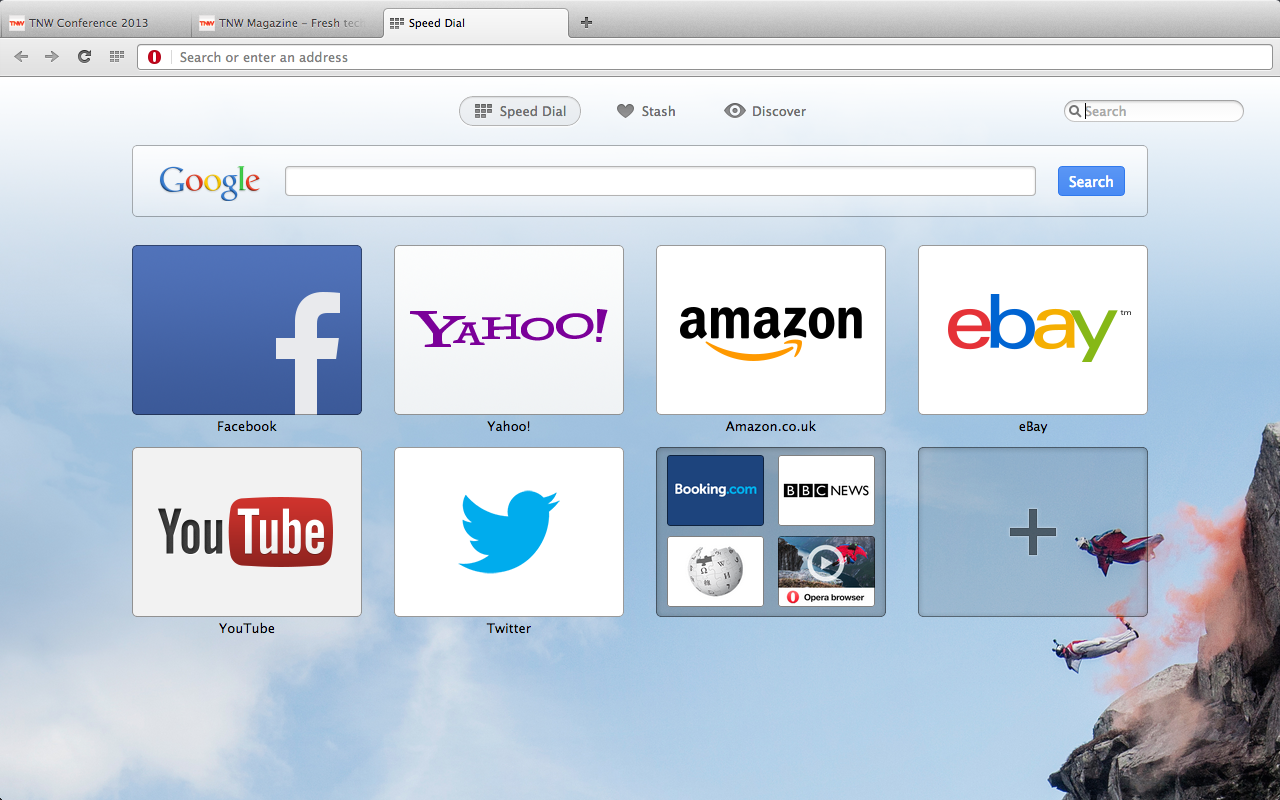
Browser shortcuts can save you a lot of time. Instead of finding and navigating the correct menu with your mouse, you could use a few simple keyboard shortcuts.
- CTRL F: brings up a search box allowing you to search for a specific word on a page
- CTRL D: bookmarks a page
- CTRL P: prints whatever you have selected
- CTRL T: opens a new tab
- CTRL W: closes window
- CTRL +: zooms in
- CTRL -: zooms out
- Alt Home: returns you to your homepage
- F5: refreshes or reloads the page that you are on
- F11: lets you toggle between full and regular screen mode, a particularly useful shortcut if you are using multiple windows
Get to know your browser shortcuts and surf the web more effectively.
5. Keep browser plugins updated
Browser plugins are handy pieces of downloadable software that help you to use various applications in conjunction with your browser. Watching a YouTube video? You’ll need a Flash plugin. Streaming some music? You’ll need a plugin for that too. Be sure to download the latest version whenever you are required to, failing to do so could hamper your browsing experience.
6. Use tabbed browsing
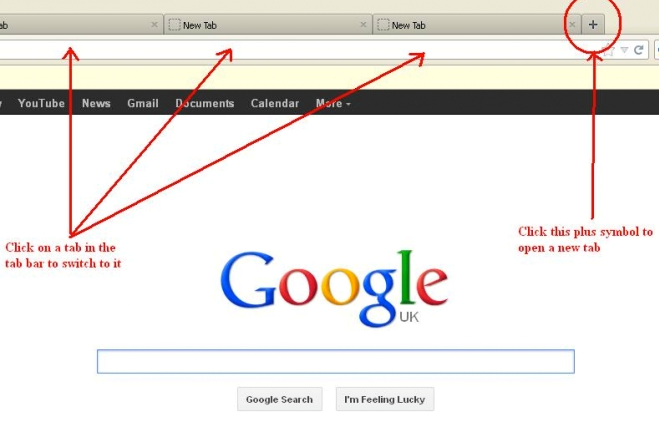
If your desktop is overflowing with browsing windows and you can’t remember which one contained the vital piece of information that you were searching for, maybe it’s time to use tabbed browsing. Tabbed browsing allows you to open various different websites in one browser window simply by using tabs. You can open a new tab by either clicking the symbol to the right of the last tab (see image) or by pressing CTRL T.
7. Update your antivirus
Often overlooked until it’s too late, a good antivirus program can make the difference between a nice, healthy computer and one which is overflowing with all sorts of computer nasties. Always keep an eye on your antivirus software and ensure that all its components are in good working order. If not; download an update, it will be more than worth it.
8. Use ‘Tab’ to jump between fields
Whilst a mouse is an undeniably useful device, it’s not always necessary. In fact, not using a mouse can save you a great deal of time. If you’re filling in fields on a web page, rather than clicking on each field in order, simply press ‘Tab’; this will jump between the fields for you. Clicking tab enough times will cycle back to the beginning of the web-page. You can also use the up and down arrows to select things in drop down menus, saving you even more time.
9. Drop the http:// and www. prefixes
Whilst explaining to people that http stands for hyper text transfer protocol is undoubtedly a great way to win yourself some friends, putting it at the front of a web address is just an exercise in wasting time. Drop the http:// and www prefixes as they are simply not necessary. Instead, just type the remainder of the address and press enter. It will work, trust me.
Always check the URL of a website you are about to click on. Make sure the URL is secure by looking at the ‘S’ at the end of ‘http’. Also, check the privacy policy of websites and make sure the URL is spelled correctly. Check out this great link checker guide: https://www.makeuseof.com/tag/4-quick-sites-that-let-you-check-if-links-are-safe/.
10. Search direct from your browser
We’ve already covered search engines and how useful they can be to the modern internet browser, but typing in the address of a search engine can really eat up a lot of time. To create a truly streamlined browsing experience, why not access the search engine of your choice directly from your browser. You can do this in two ways; the first way is through a customisable home screen, like the one offered by Google, which gives you the option of having a search engine on your homepage. The other is by customising your browser to give you a search bar of your choice.
 LIAR PEYK INTERNET